
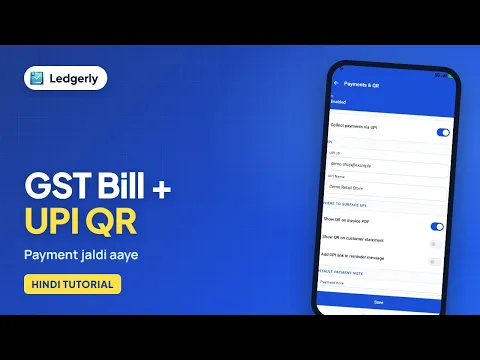
 How to create a GST invoice with a UPI QR code
Hindi with English subtitles · 11:12
Set up invoice branding, add bank details and a UPI payment QR, choose where the QR appears and pick your invoice paper and design, all from Invoice settings on Android.
Tap a step to jump straight to that part of the video.
Set up invoice branding, add bank details and a UPI payment QR, choose where the QR appears and pick your invoice paper and design, all from Invoice settings on Android.
Follow along in the web app or the Android app. Core GST billing is free on Windows.
Related: GST billing app
Short Hindi videos for each part of the app.
How to create a GST invoice with a UPI QR code
Hindi with English subtitles · 11:12
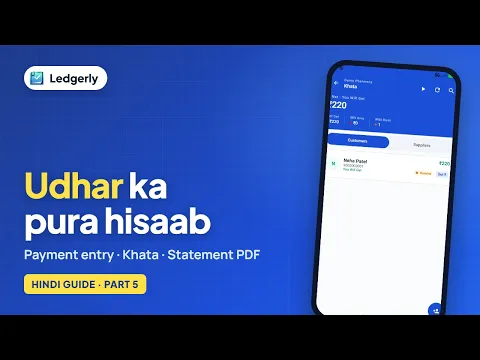 How to record a customer payment and check the khata
Hindi with English subtitles · 3:58
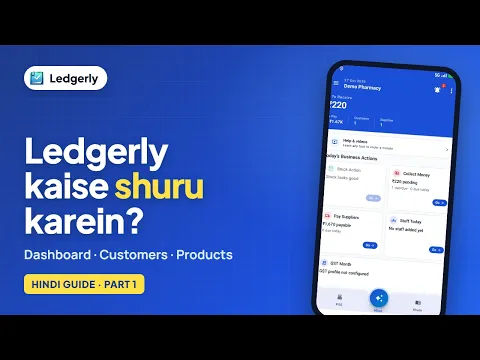 How to start using Ledgerly: dashboard, customers and products
Hindi with English subtitles · 3:16
See all video tutorials or subscribe on YouTube.