
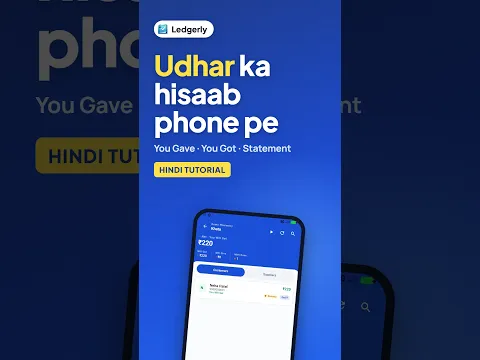
 How to Manage Udhar Khata on Mobile (Hindi)
Android · 2:15
Record a payment against the right invoice, confirm the balance left to collect, find the receipt in the customer ledger and download a khata statement PDF to send to the customer.
Ledgerly में ग्राहक का पेमेंट कैसे दर्ज करें, बकाया रकम और खाता कैसे देखें, और स्टेटमेंट PDF कैसे डाउनलोड करें, सीखें।
Tap a step to jump straight to that part of the video.
Follow along in the web app or the Android app. Core GST billing is free on Windows.
Related: Khata app
The same task on Android in 2:15, with Hindi narration and English subtitles.
How to Manage Udhar Khata on Mobile (Hindi)
Android · 2:15
Short Hindi videos for each part of the app.
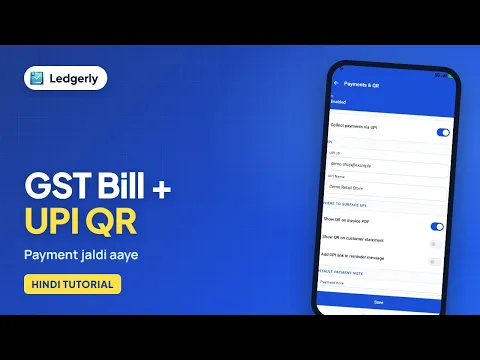 How to create a GST invoice with a UPI QR code
Hindi with English subtitles · 11:12
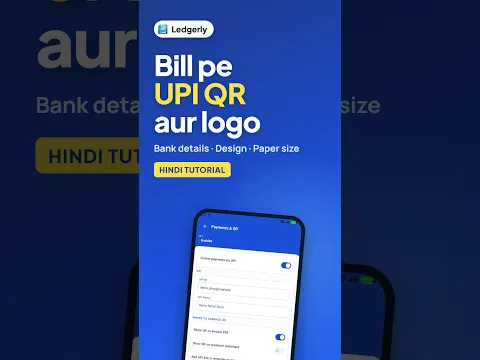 How to add a UPI QR code and bank details to your invoice
Hindi with English subtitles · 1:43
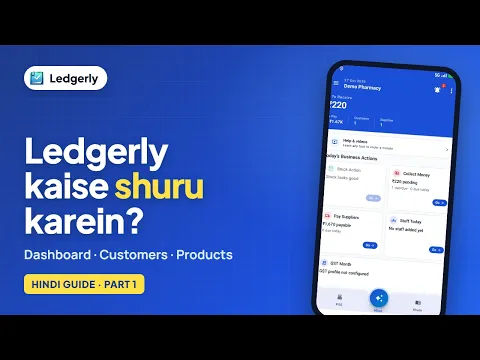 How to start using Ledgerly: dashboard, customers and products
Hindi with English subtitles · 3:16
See all video tutorials or subscribe on YouTube.