
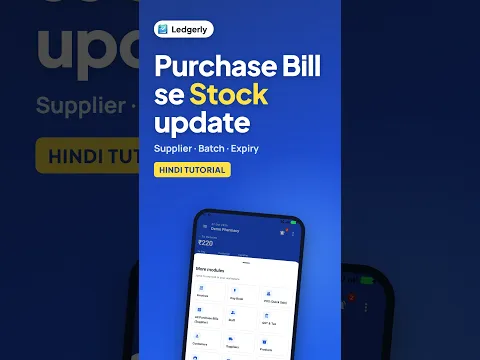
 How to Create Purchase Bill on Mobile (Hindi)
Android · 2:41
Choose the supplier and bill details, add products with quantities and purchase prices, enter batch numbers and expiry dates, then finalise the bill so the stock is received.
Ledgerly में परचेज बिल कैसे बनाएं, सप्लायर और बैच की जानकारी कैसे भरें, और बिल फाइनल करके स्टॉक कैसे प्राप्त करें, सीखें।
Tap a step to jump straight to that part of the video.
Follow along in the web app or the Android app. Core GST billing is free on Windows.
Related: Inventory management app
The same task on Android in 2:41, with Hindi narration and English subtitles.
How to Create Purchase Bill on Mobile (Hindi)
Android · 2:41
Short Hindi videos for each part of the app.
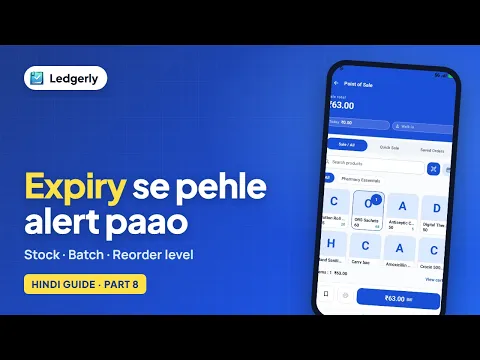 How to add stock and manage batches with expiry dates
Hindi with English subtitles · 4:18
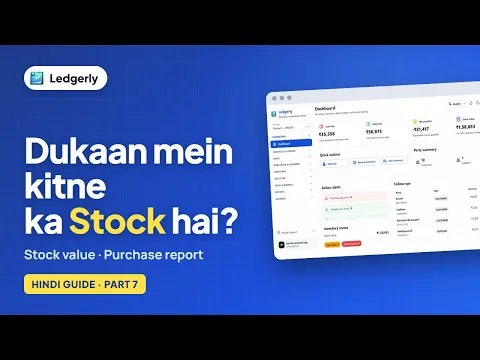 How to check stock value and purchase reports
Hindi with English subtitles · 3:47
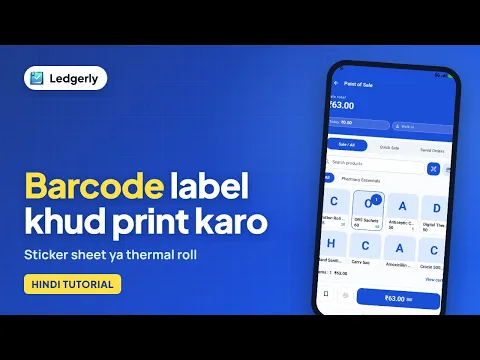 How to create and print barcode labels for your products
Hindi with English subtitles · 3:45
See all video tutorials or subscribe on YouTube.